
This article comes from real pain.
Working in a team on a large codebase, I’ve made my share of critical Git mistakes: a rebase that went wrong and wiped out commits I needed, a messy branch full of “fix fix fix” commits that I had to clean up before opening a PR, a history so tangled I wasn’t sure what was in it anymore.
Over time, two commands became my go-to rescue tools. I want to share them here with concrete examples, because knowing that they exist is not enough — you need to know when and how to use them under pressure.
- git reflog — Git’s black box: recover anything, even after a reset
- git rebase -i — Rewrite your branch history cleanly before it’s reviewed
1. git reflog — Git’s Black Box
The Problem
You ran git reset --hard, did a bad rebase, or switched branches and now some commits seem to have vanished. Git’s regular log doesn’t show them anymore. You start to panic.
Here’s the thing: Git almost never truly deletes commits. It just stops pointing to them. The reflog is the internal journal that records every position your HEAD has ever been in — including the ones you think you’ve lost.
How It Works
git reflogThe output looks like this:
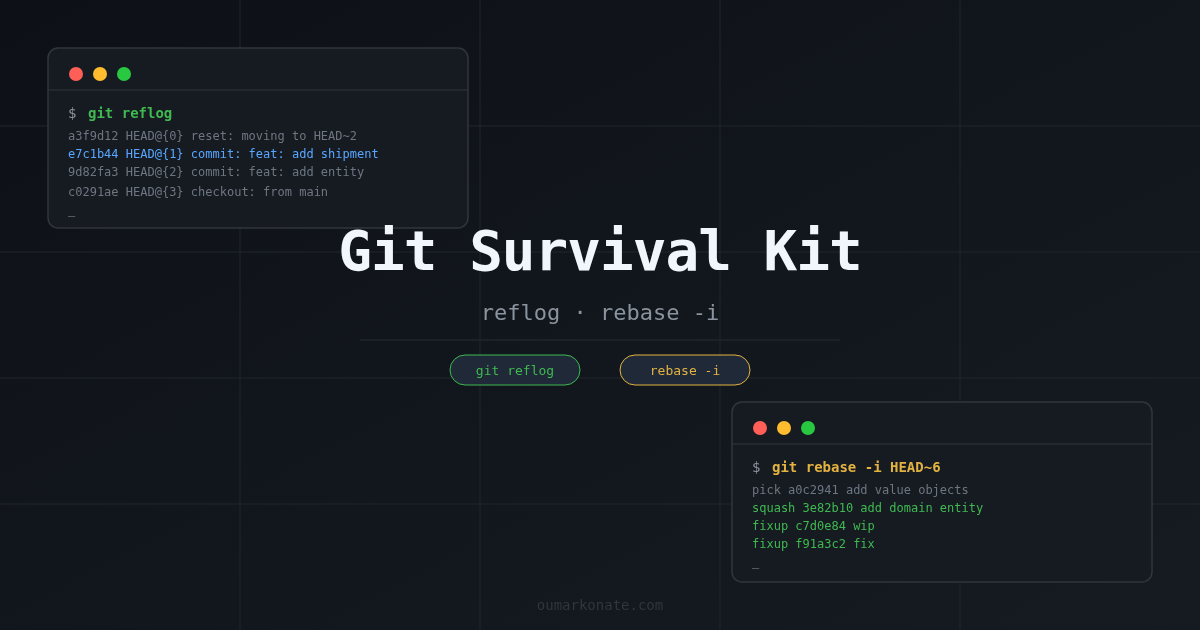
a3f9d12 HEAD@{0}  reset: moving to HEAD~2
e7c1b44 HEAD@{1}  commit: feat: add order shipment endpoint
9d82fa3 HEAD@{2}  commit: feat: add order domain entity
c0291ae HEAD@{3}  checkout: moving from main to feature/fulfillment
Every line is a moment in time. HEAD@{1} is where you were before the reset. The SHA on the left (e7c1b44) is the commit — still alive in Git’s object store.
Recovering a Lost Commit
Once you’ve spotted the SHA you need in the reflog, you have two options:
# Option 1 — Move your branch back to that commit
git reset --hard e7c1b44

# Option 2 — Create a new branch from that commit (safer)
git checkout -b rescue/my-lost-work e7c1b44

# Option 3 — Use the reflog reference directly
git reset --hard HEAD@{1}
Key Things to Know
- The reflog is local only — it doesn’t exist on the remote. If a colleague lost commits on their machine, their reflog won’t help you.
- Git garbage-collects unreachable commits after ~90 days by default. You usually have plenty of time.
- You can filter by branch:
git reflog show feature/my-branch
Rule of thumb: whenever something seems lost in Git, open the reflog first. Nine times out of ten, the commit is still there.
2. git rebase -i — Rewrite History Before It’s Reviewed
The Problem
You’ve been working on a feature for two days. Your branch looks like this:
git log --oneline

f91a3c2 fix
e3b2d11 fix again
c7d0e84 wip
9a1f432 feat: add order shipment endpoint
3e82b10 feat: add domain entity
a0c2941 feat: add value objects
Nobody wants to review that. Before opening a PR, you want to turn those 6 commits into 2 clean, meaningful ones. That’s exactly what git rebase -i (interactive rebase) is for.
How It Works
git rebase -i HEAD~6This opens your editor with a list of commits, oldest first:
pick a0c2941 feat: add value objects
pick 3e82b10 feat: add domain entity
pick 9a1f432 feat: add order shipment endpoint
pick c7d0e84 wip
pick e3b2d11 fix again
pick f91a3c2 fix

# Commands:
# pick   = use commit as-is
# reword = use commit, but edit the message
# squash = meld into previous commit (keeps both messages)
# fixup  = meld into previous commit (discards this message)
# drop   = remove the commit entirely
You edit it to:
pick   a0c2941 feat: add value objects
squash 3e82b10 feat: add domain entity
pick   9a1f432 feat: add order shipment endpoint
fixup  c7d0e84 wip
fixup  e3b2d11 fix again
fixup  f91a3c2 fix
Save and close. Git rewrites the history. Your branch now has 2 clean commits.
The Most Useful Commands
| Command | What it does | Use case |
|---|---|---|
pick | Keep the commit as-is | Clean commits you want to keep |
reword | Keep the commit, edit its message | Fix a typo in a commit message |
squash | Merge into the previous commit, combine messages | Grouping related commits |
fixup | Merge into the previous commit, discard this message | WIP / fix commits |
drop | Delete the commit entirely | Remove a debug commit you forgot to revert |
Rebasing onto the Target Branch
A common workflow before opening a PR: rebase onto the latest main and clean up history in the same pass.
# Fetch the latest main
git fetch origin

# Rebase your branch onto it, interactively
git rebase -i origin/main
If the Rebase Goes Wrong — Use reflog
This is where both commands work together. If a rebase produces a mess, abort immediately:
git rebase --abortIf you already finished the rebase but the result is wrong, use the reflog to find where your branch was before:
git reflog
# Find the entry just before "rebase (start)" or "rebase (finish)"
git reset --hard HEAD@{4}   # adjust the number to match
You’re back to square one, with zero data loss.
One Important Warning
Never rebase a branch that has already been pushed and shared with others. Rewriting history creates new SHAs, which breaks everyone else’s local copy of the branch. Reserve rebase -i for branches that are local-only or that only you are working on.
If you must push after a rebase, use
git push --force-with-lease— safer than--forcebecause it checks that no one else pushed in the meantime.
Conclusion
These two commands cover the vast majority of Git emergencies I’ve faced at work:
- git reflog — when something is “lost”. It almost never truly is.
- git rebase -i — when your history is a mess and needs to tell a cleaner story before review.
They’re also complementary: rebase -i rewrites history, reflog lets you undo that rewrite if it goes wrong. Together, they give you a safety net that makes Git far less stressful to work with in a team.
Learn the reflog before you need it. You’ll be glad you did.