
Every developer or blogger who uses an AI assistant knows the friction: you draft an article in your AI chat, and then you switch to your browser, log into WordPress, paste the content, set categories, upload a featured image, and hit publish. Back and forth, every single time.
What if your AI could just… do that for you?
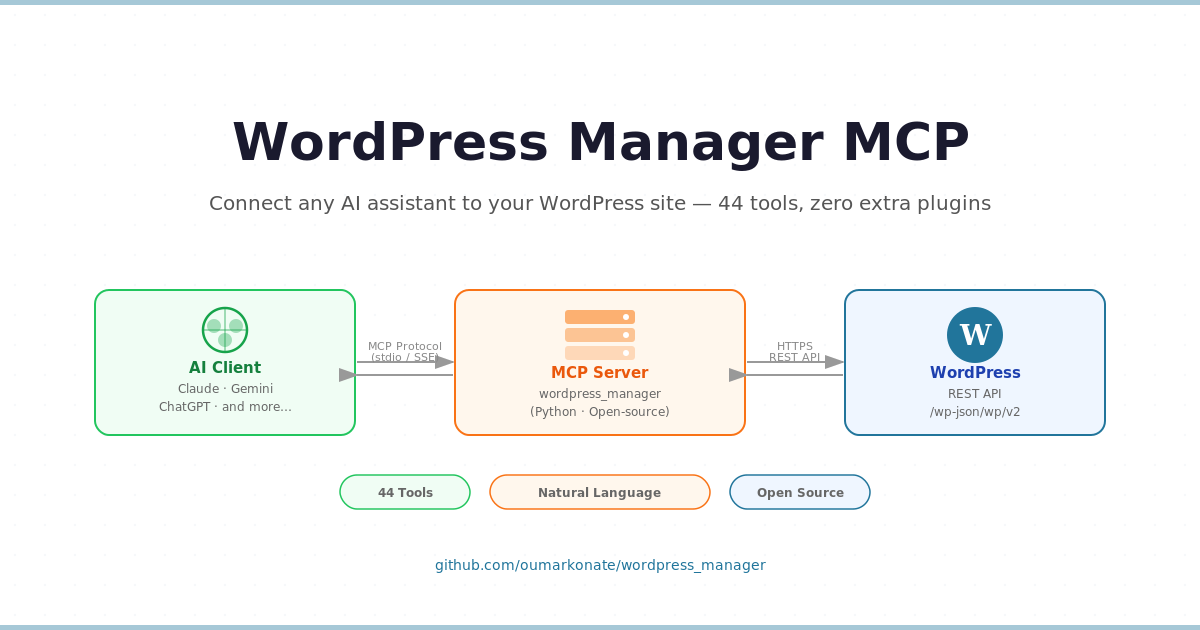
That’s exactly what WordPress Manager MCP is built for. It’s an open-source server that gives any compatible AI assistant direct access to your WordPress site — no new plugins required, no complex setup, just natural language connected to your content.
What is MCP?
The Model Context Protocol (MCP) is an open standard that defines how AI assistants communicate with external tools and services. Think of it like USB for AI: once a service implements the protocol, any compatible AI can use it — no custom integration work needed for each model.
Before MCP, connecting an AI to a service meant writing a custom integration for each model, managing API keys in prompt engineering, and rebuilding connectors every time you switched providers. With MCP, you write the server once and any MCP-compatible client can use it immediately.
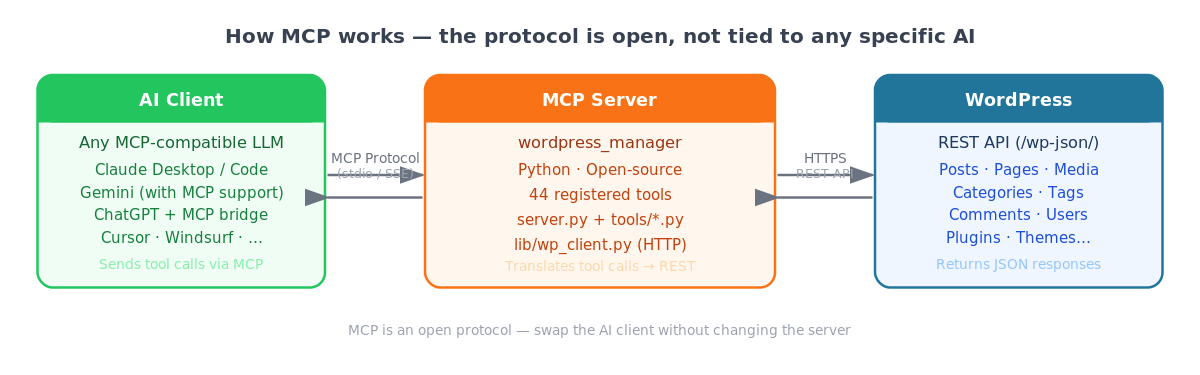
The protocol works over stdio (standard input/output) or SSE (Server-Sent Events). The AI client sends a structured tool call, the MCP server executes the action, and returns a structured response. From the AI’s perspective, calling create_post() on your WordPress site feels exactly like calling a local function.
Key idea: MCP is not tied to any single AI vendor. It’s an open protocol, the same way HTTP is open. Any LLM that implements MCP — Claude, Gemini, ChatGPT, Cursor, Windsurf, and others — can connect to the same server without any changes on your end.
WordPress Manager MCP at a Glance
wordpress_manager is an open-source MCP server written in Python that exposes your WordPress site through the WordPress REST API — available by default since WordPress 4.7. No extra plugin needed.
→ github.com/oumarkonate/wordpress_manager
44 tools organized in 10 categories:
| Category | What you can do |
|---|---|
| Posts | List, get, create, update, delete, schedule, revisions, autosaves, metadata |
| Pages | List, get, create, update, delete, schedule |
| Media | Upload files, update alt text/caption, delete, set featured image |
| Categories & Tags | List, create, update, delete |
| Comments | List, get, moderate (approve / spam / delete) |
| Users | List, get |
| Site & Discovery | Site info, settings, post types, taxonomies, statuses, full-text search |
| Navigation | Menus and menu items (WP 5.9+) |
| Plugins & Themes | List installed plugins and themes with active/inactive status (admin only) |
| Widgets | Sidebars and active widgets (WP 5.8+) |
Compatible with Claude (Desktop & Code), Gemini (with MCP support), ChatGPT (via MCP bridge), Cursor, Windsurf, and any other MCP-compatible client.
How It Works Under the Hood
Let’s trace exactly what happens when you ask your AI “publish a post about MCP”:
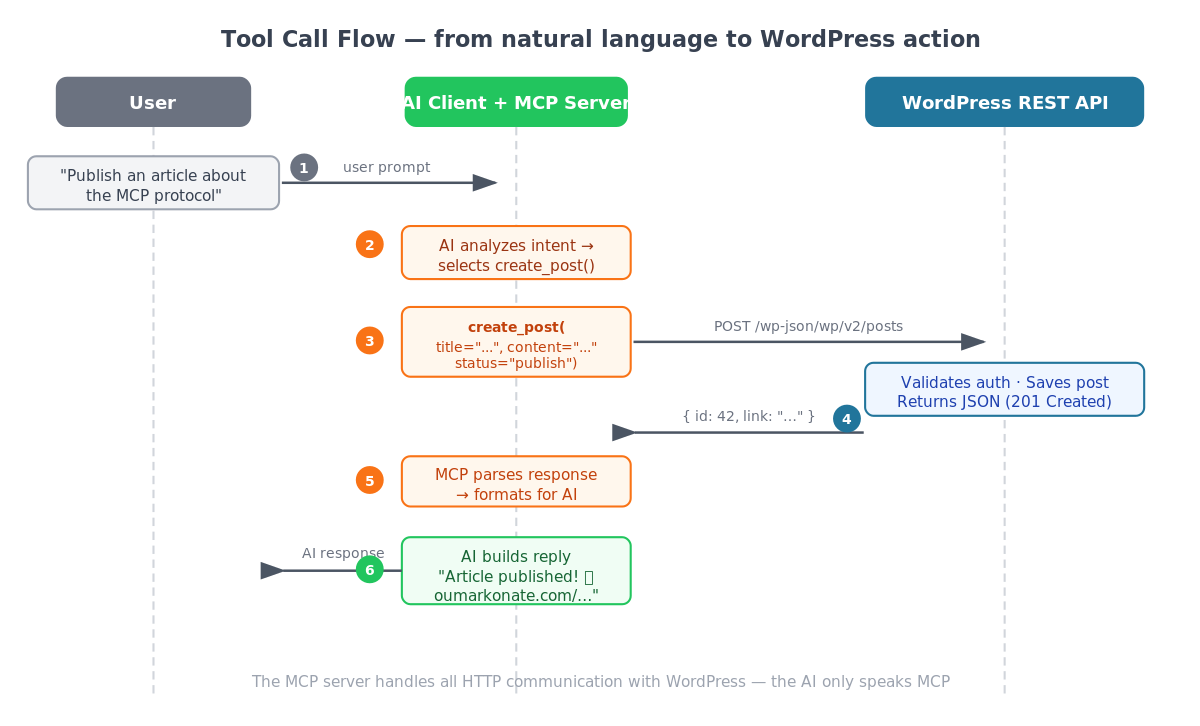
- You type your request — the AI client receives your natural language prompt.
- The AI selects a tool — it determines that
create_post()is the right action based on the tool descriptions exposed by the MCP server. - MCP call — the AI sends a structured tool call:
create_post(title="...", content="...", status="publish"). - HTTP request — the MCP server translates this into a
POST /wp-json/wp/v2/postsrequest authenticated with an Application Password. - WordPress responds — returns JSON with the new post’s ID, URL, and metadata (HTTP 201 Created).
- AI replies — “Your post has been published: oumarkonate.com/…”
The key architectural insight: the MCP server is a thin translation layer. It doesn’t store data, doesn’t add business logic — it converts tool calls into REST API calls and returns the results. This keeps it easy to audit, extend, and trust.
Project structure
wordpress_manager/
├── server.py          # MCP server — registers all 44 tools
├── config.py          # Settings loaded from .env
├── lib/
│   └── wp_client.py   # HTTP client (wp_get, wp_post, wp_patch, wp_delete, wp_upload_file)
└── tools/             # One Python file per tool
    ├── create_post.py
    ├── update_post.py
    ├── upload_media.py
    └── ...            # 44 tools total
Each tool is a plain Python function with typed arguments. The MCP SDK automatically converts these type signatures into the tool schema that the AI reads to understand what parameters are available and what each one does.
def create_post(
    title: str,
    content: str,
    status: str = "draft",
    categories: list[int] | None = None,
    tags: list[int] | None = None,
    date: str | None = None,
) -> Post:
    """Create a new WordPress post.

    Args:
        title: Post title (plain text).
        content: Post body (HTML or Gutenberg blocks).
        status: draft, publish, private, or future.
        date: ISO 8601 date — use status="future" to schedule.
    """
    ...
Step-by-Step Installation
Requirements: Python 3.10+, a WordPress site with REST API enabled (default since WP 4.7), and an Application Password (WordPress 5.6+, requires HTTPS).
1. Clone and install
git clone https://github.com/oumarkonate/wordpress_manager.git
cd wordpress_manager
python3 -m venv .venv
source .venv/bin/activate   # Windows: .venv\Scripts\activate
pip install -r requirements.txt
2. Create a WordPress Application Password
In your WordPress admin panel: Users → Profile → Application Passwords → enter a name (e.g. wordpress-manager-mcp) → click Add New Application Password → copy the generated password (xxxx xxxx xxxx xxxx xxxx xxxx).
Application Passwords are safer than your main password: they are scoped, individually revocable, and auditable. If you ever need to revoke access, delete the password from your profile — no other credentials are affected.
3. Configure your .env
cp .env.example .envEdit .env:
WP_URL=https://yoursite.com/wp-json/wp/v2
WP_LOGIN=your@email.com
WP_PASSWORD=xxxx xxxx xxxx xxxx xxxx xxxx
WP_ALLOW_DELETE=false
4. Connect to your AI client
For Claude Desktop (claude_desktop_config.json) or Claude Code (.mcp.json):
{
  "mcpServers": {
    "wordpress_manager": {
      "command": "/absolute/path/to/wordpress_manager/.venv/bin/python3",
      "args": ["-m", "wordpress_manager"],
      "env": {
        "PYTHONPATH": "/absolute/path/to"
      }
    }
  }
}
Other MCP clients use the same JSON format — adapt the config file location per your client’s documentation. Ready-to-copy templates for Linux, macOS, and Windows are included in the repository.
5 Things You Can Do Right Now
Here are concrete examples of what you can ask your AI assistant once the server is running:
Draft and publish a post
“Write a 600-word introductory post about the Model Context Protocol for my blog, save it as a draft, assign it to the ‘AI’ tag and the ‘Technology’ category.”
Schedule content in advance
“Create a post titled ‘Weekly Digest — Week 21’ with this content: [paste], schedule it for next Monday at 8:00 AM.”
Audit your content
“List all my draft posts and tell me which ones are missing a featured image.”
Upload and attach media
“Upload /home/user/banner.png to the media library with alt text ‘MCP architecture diagram’, then set it as the featured image for post ID 42.”
Moderate comments
“Show me the 10 most recent pending comments and approve the ones that look legitimate.”
Security by Design
Two safety features are built into the project from the ground up.
Application Passwords — not your main password
The server authenticates with a WordPress Application Password — never your main account password. Application Passwords are scoped to a single application, individually revocable without affecting your main account, and logged in the WordPress admin. If the credentials are ever compromised, you revoke one password and you’re done.
WP_ALLOW_DELETE guard — deletions blocked by default
All destructive operations — delete_post, delete_page, delete_media, delete_category, delete_tag — are blocked by default at the HTTP client level, before any request reaches WordPress:
# lib/wp_client.py
def wp_delete(endpoint: str, force: bool = False) -> dict:
    if not settings.allow_delete:
        raise PermissionError(
            "Deletion is disabled. Set WP_ALLOW_DELETE=true in your .env to enable it."
        )
This means an AI assistant can never accidentally delete your content unless you explicitly set WP_ALLOW_DELETE=true in your .env. It’s a deliberate speed bump — you have to opt in, not opt out.
Conclusion
WordPress Manager MCP makes your WordPress site a first-class citizen in any AI workflow. Whether you’re using Claude, Gemini, ChatGPT, or any other MCP-compatible assistant, you can now manage your content in natural language — drafting posts, uploading media, moderating comments, scheduling — without ever leaving your AI environment.
The architecture is intentionally minimal: a thin Python layer that translates tool calls into WordPress REST API requests. No database, no state, no complexity. Easy to read, easy to extend, easy to trust.
The project is open-source, MIT licensed, and actively maintained. If you try it, run into an issue, or want to contribute a new tool — pull requests and issues are welcome.